
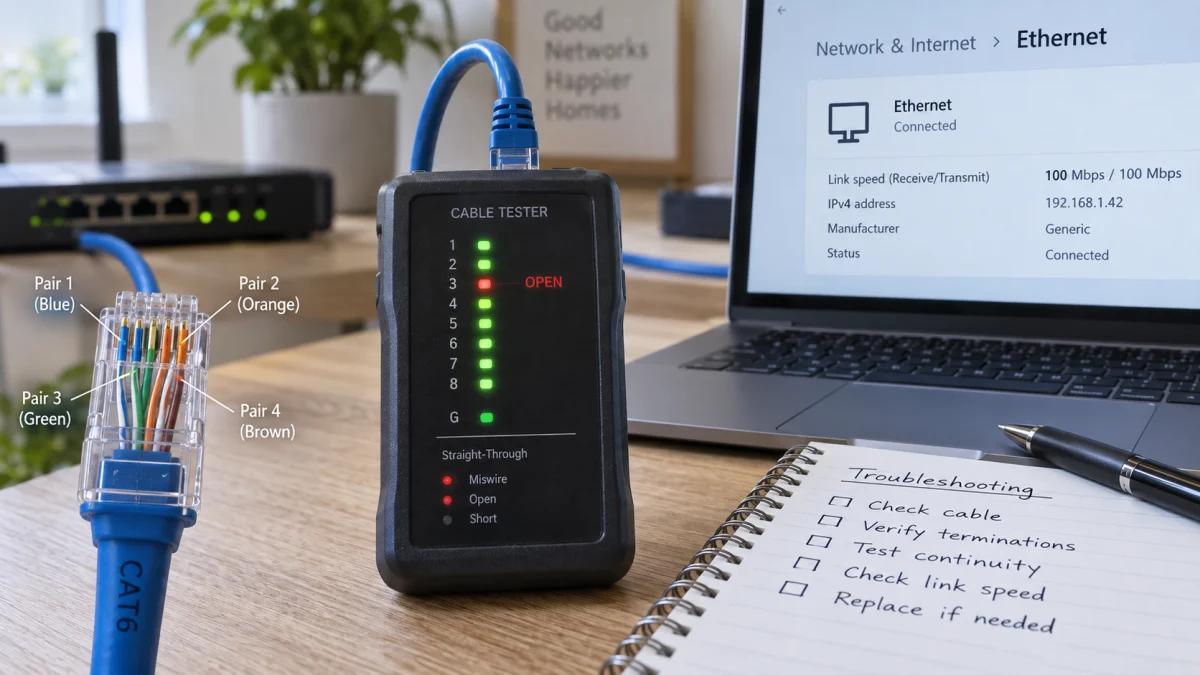
If your computer, router, or switch should have a Gigabit Ethernet connection but keeps negotiating at 100 Mbps, start with the physical connection.
Gigabit Ethernet, or 1000BASE-T, requires all four twisted wire pairs in an Ethernet cable. Standard 100BASE-TX Fast Ethernet uses only two specific pairs. That means a cable with a damaged conductor, bad wall-jack termination, or other pair fault can sometimes continue working perfectly well at 100 Mbps while failing to establish a 1 Gbps link.
That exact 100 Mbps fallback is therefore an important clue—not merely a slow speed test.
The fastest troubleshooting method is:
- Confirm that the Ethernet link speed itself is 100 Mbps.
- Bypass as much of the existing cabling as possible with one known-good Ethernet cable.
- If Gigabit returns, work backward through the cables, wall jacks, switches, and patch panels you bypassed.
- If an in-wall cable is the suspected problem, use a cable tester before replacing anything.
For most homeowners, you do not need professional network-certification equipment to solve this.
Affiliate disclosure: sherafy.com may earn a commission if you purchase through links on this page, at no additional cost to you. As an Amazon Associate I earn from qualifying purchases.
First: Make Sure You Actually Have a 100 Mbps Link Problem
There is an important difference between:
Ethernet link speed: 100 Mbps
and:
Internet speed test: 100 Mbps
If Windows reports a 1.0 Gbps Ethernet link, but Speedtest only gives you 100 Mbps, your Ethernet cable has already negotiated Gigabit successfully. The bottleneck could instead be your internet plan, router, modem, network congestion, or another part of the connection.
But if Windows or your network equipment reports the Ethernet connection itself as 100 Mbps, keep reading.
On Windows, you can also check your Ethernet adapter’s Speed & Duplex setting in Device Manager. For a normal Gigabit connection, Auto Negotiation is generally the correct setting. Intel specifically recommends leaving Gigabit adapters on Auto Negotiation rather than trying to force a particular speed.
Why a Bad Ethernet Cable Can Still Work at 100 Mbps
This is the part that makes the problem confusing.
An RJ45 Ethernet connector contains eight conductors arranged as four twisted pairs.
For ordinary 100BASE-TX Ethernet, communication relies on two of those pairs.
1000BASE-T Gigabit Ethernet uses all four.
So imagine that one conductor connected to pins 4, 5, 7, or 8 is open because of a poorly punched-down jack.
The cable may no longer be capable of Gigabit Ethernet—but it can still have everything 100BASE-TX needs.
The result can look like this:
Internet works.
Ethernet works.
Nothing appears completely broken.
But the link keeps negotiating at 100 Mbps.
Cisco’s Ethernet specifications distinguish the two directly: 100BASE-TX uses two pairs, while 1000BASE-T requires four. Fluke Networks likewise notes that a cable can have a fault on one of the pairs Gigabit needs and still pass for 100BASE-TX.
The Fastest Test Costs Almost Nothing
Before buying a cable tester, try a known-good Ethernet patch cable.
Connect the computer as directly as practical to a known Gigabit-capable router or switch port, bypassing wall jacks, patch panels, couplers, and intermediate switches.
Then check the negotiated link speed again.
If it changes from:
100 Mbps → 1.0 Gbps
you have established something important.
Your computer and network adapter can negotiate Gigabit. The fault is somewhere in the cabling or equipment you bypassed.
A basic Cat5e cable is sufficient for Gigabit Ethernet when properly made. You do not need Cat7 or Cat8 to fix this problem. If you’re buying a new patch cable anyway, Cat6 is inexpensive and sensible.
Simple first purchase: Cable Matters Cat6 Snagless Ethernet Patch Cable
Any reputable, properly constructed Cat5e or Cat6 cable can perform this test; there is nothing magical about that particular cable.
What Ethernet Cable Tester Do You Actually Need?
Affiliate disclosure: As an Amazon Associate I earn from qualifying purchases. If you purchase something through qualifying product links on this page, sherafy.com may earn a commission at no additional cost to you.
Once the suspected problem is inside a wall, buying a tester starts making sense.
But there is a major difference between a cheap continuity tester and equipment capable of actually qualifying Ethernet performance.
Cheapest option: Basic RJ45 wire-map tester
A basic tester can help identify obvious problems such as:
- an open conductor;
- a short;
- wires connected to the wrong pins;
- a completely failed termination.
If you only install an Ethernet cable once every few years, this may be enough.
The limitation is that the cheapest testers generally provide fairly basic electrical continuity information. For this particular problem, I would spend a little more for a tester that explicitly detects split pairs.
Best choice for most homeowners: Klein LAN Scout Jr. 2
Recommended: Klein Tools LAN Scout Jr. 2 — VDV526-200
This is probably the point at which additional spending actually buys useful diagnostic capability.
Klein specifies that the LAN Scout Jr. 2 can detect:
- open faults;
- shorts;
- miswires;
- split pairs;
- shield faults.
It displays a pin-to-pin wire map and also includes a tone generator.
The split-pair detection matters because Ethernet isn’t merely eight independent wires that need to reach the correct numbered pins. The conductors also have to remain arranged in the correct twisted pairs. A wiring mistake can therefore be more subtle than a completely disconnected conductor.
For a homeowner troubleshooting a few Cat5e or Cat6 runs, this is roughly the class of tester I would buy.
Better if you’re wiring an entire house: Klein Scout Pro 3
Upgrade option: Klein Tools Scout Pro 3 — VDV501-851
The Scout Pro 3 adds capabilities that become useful when you have a substantial amount of structured wiring.
Depending on the kit, it can provide:
- wire mapping;
- split-pair detection;
- open/short/miswire detection;
- cable-length measurement;
- identification of multiple cable runs;
- hub-port blinking;
- tracing capabilities.
Klein rates its cable-length measurement for runs up to 2,000 feet.
If you just have one suspicious wall jack, that’s probably unnecessary.
If you moved into a house containing 20 Ethernet drops, a patch panel, unlabeled cables, and several questionable terminations, the additional capability becomes much easier to justify.
What the Klein Testers Do NOT Tell You
There is an important distinction between verifying wiring and qualifying cable performance.
A tester can tell you that the conductors are correctly connected without necessarily proving that the installed cable meets the electrical performance requirements for Gigabit Ethernet.
Professional tools go further.
For example, the Fluke Networks LinkIQ can test cable performance against Ethernet rates ranging from 10BASE-T through 10GBASE-T, in addition to measuring length and diagnosing wiring faults.
That’s impressive equipment.
It’s also far beyond what I would recommend buying to troubleshoot one Ethernet cable in a house.
The useful question isn’t:
What is the best Ethernet tester money can buy?
It’s:
What is the least expensive tool that can actually diagnose my problem?
For most homeowners with this particular symptom, the LAN Scout Jr. 2 is already capable of finding the faults you’re most likely looking for.
If the Tester Finds a Bad Wall Jack
Don’t immediately replace the entire cable running through the wall.
A termination is often much easier to fix than an in-wall cable.
Check both ends of the run:
- wall keystone jack;
- patch panel;
- RJ45 connector, if one is used;
- short patch cables connecting the permanent run to your equipment.
Both ends should use the same wiring standard—normally T568A or T568B—and the pairs should remain twisted as close to the termination as practical.
For Ethernet keystone jacks and patch panels using 110-style terminals, a punch-down tool is the proper tool rather than an RJ45 crimper.
One example is the Klein Tools 110 Impact Punchdown Tool.
Then test the run again.
What If the Cable Tests Correctly but You’re Still at 100 Mbps?
Move outward.
Check each of these individually:
1. The Ethernet port
Some older routers, switches, TVs, printers, USB adapters, and other devices genuinely have only 10/100 Ethernet ports.
No cable can turn a Fast Ethernet port into a Gigabit port.
2. Every patch cable
The permanent in-wall cable might be perfect while the three-foot patch cable between the wall and your computer is damaged.
3. Intermediate switches
A forgotten 10/100 switch somewhere in the path creates a hard 100 Mbps ceiling.
4. Adapter configuration
Return Speed & Duplex to Auto Negotiation unless you have a specific reason to configure it manually.
5. Try another Gigabit device
Connect another known Gigabit-capable computer to the same cable.
If both negotiate at 100 Mbps, suspicion shifts strongly toward the cable, termination, switch, or upstream port.
If one negotiates at Gigabit and the other doesn’t, investigate the individual computer or network adapter.
Don’t Buy Cat8 Cable to Solve a Wiring Fault
This deserves its own warning because Ethernet cable marketing has become ridiculous.
If you’re troubleshooting ordinary Gigabit Ethernet in a house, a properly installed Cat5e or Cat6 cable is sufficient.
Replacing a defective Cat5e cable with an expensive “40 Gbps Cat8 gaming cable” may appear to fix the problem—but only because you replaced the defective cable.
The Cat8 label wasn’t the cure.
A properly functioning Cat5e cable would also have negotiated 1 Gbps.
The Bottom Line
If your Ethernet connection is stuck at exactly 100 Mbps instead of 1 Gbps, don’t start by changing Windows settings or buying exotic Ethernet cable.
Start with the physical path.
Use a known-good patch cable to bypass everything you can.
If Gigabit returns, add the components back one at a time until you identify the problem.
For an exposed patch cable, replacement is usually cheaper than diagnosis.
For an installed wall run, a cable tester becomes worthwhile.
For occasional basic troubleshooting: a simple wire-map tester may be enough.
For homeowners who want a tester capable of detecting split pairs: the Klein LAN Scout Jr. 2 is the level I would choose.
For extensive home-network installations: the Scout Pro 3’s length measurement and mapping features can justify the upgrade.
For professional cable qualification: equipment such as Fluke’s LinkIQ exists—but buying one to repair a single home Ethernet run makes very little economic sense.
Sometimes a 100 Mbps connection isn’t mysterious at all.
It’s your network equipment telling you that somewhere along the path, Gigabit Ethernet cannot successfully use all four pairs.
References and Further Reading
Ethernet Standards and Troubleshooting
Fluke Networks — Cable Test Limits: 2 Pair vs. 4 Pair — Explains which conductor pairs are required for 100BASE-TX compared with 1000BASE-T and why some wiring faults can still permit a 100 Mbps connection.
Cisco — Catalyst 1000 Series Switches Data Sheet — Lists 100BASE-TX as a two-pair technology and 1000BASE-T as a four-pair technology.
Intel — Ethernet Link Speed Capped at 100 Mbps — Practical troubleshooting guidance for a Gigabit-capable adapter negotiating only a 100 Mbps connection, including Auto Negotiation and cable isolation.
Fluke Networks — 1000BASE-T Over Category 5 — Useful background on the cabling requirements of 1000BASE-T and why extremely high-category cables are unnecessary for ordinary Gigabit Ethernet.
Cable-Test Equipment
Klein Tools — LAN Scout Jr. 2 — Manufacturer specifications for wire mapping, split-pair, open, short, and miswire detection.
Klein Tools — Scout Pro 3 — Manufacturer specifications for the higher-level tester, including cable length, mapping, and fault detection.
Fluke Networks — LinkIQ Cable and Network Tester — Illustrates the difference between simple wiring verification and professional Ethernet performance qualification.
Editorial note: Product models, specifications, availability, and prices can change. Verify the current manufacturer specifications before purchasing.