Yes. You can build a home camera system that does most of what people actually want from Google Nest cameras without paying a mandatory monthly camera-storage subscription.
The simplest serious version looks like this:
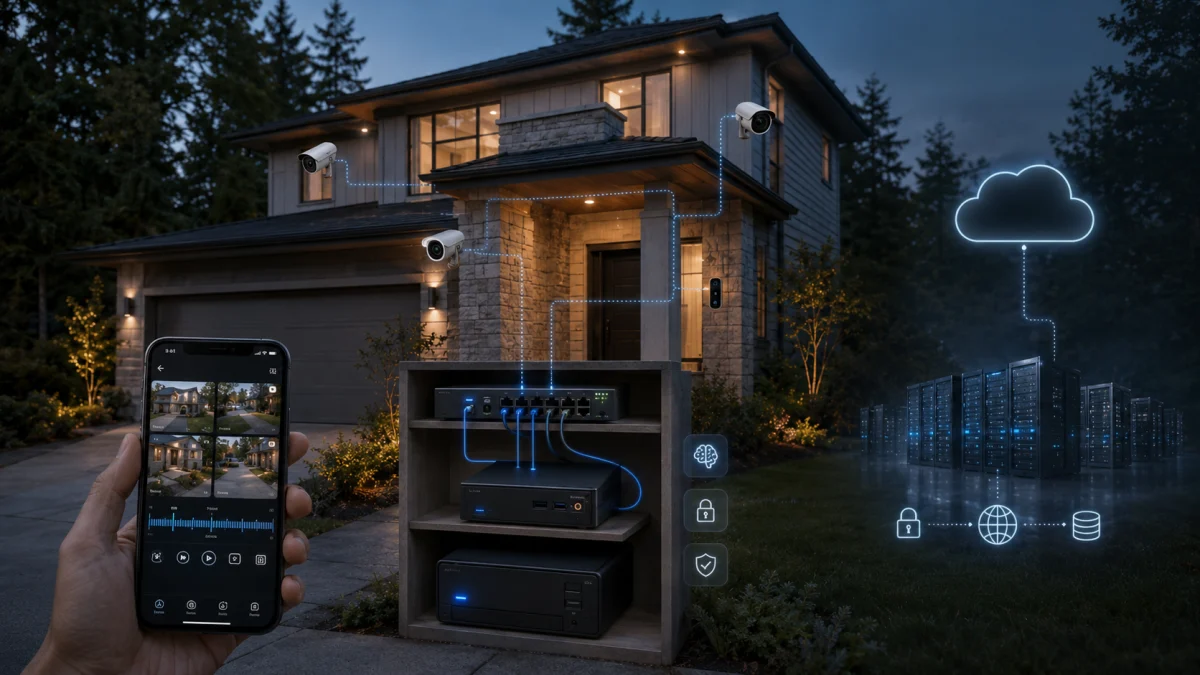
Cameras → your home network → a small computer running Frigate → your own hard drive
Add secure remote access, and you can check those cameras from your phone anywhere in the world. Add compatible microphones and speakers, and you can talk through them. Enable local AI, and the system can distinguish people, cars, dogs and cats, recognize familiar faces, search recorded events and notify your phone.
Most importantly, your continuous video history can be limited by the size of the hard drive you bought, rather than by the cloud-storage tier you are paying for.
This is not quite as effortless as opening a Nest box and scanning a QR code. You are exchanging a recurring service for ownership and control. There is some initial setup and occasional maintenance.
But you do not need to be a programmer.
If you can install an operating system, edit a configuration file and follow terminal commands carefully, this is now a realistic home project.
Why people are looking for a Nest alternative
Google’s camera hardware does not require a subscription merely to function, but much of the functionality people associate with a serious surveillance system depends on Google Home Premium, the service formerly known as Nest Aware.
Google renamed Nest Aware to Google Home Premium on October 1, 2025. As of August 2026, the U.S. plans are:
| Google Home Premium plan | Current price | Recorded history |
|---|---|---|
| Standard | $10/month or $100/year | 30 days of event history |
| Advanced | $20/month or $200/year | 60 days of event history plus 10 days of 24/7 history on eligible wired cameras |
Google’s free recording capabilities vary by camera generation; newer Nest cameras can retain several hours of event previews without a subscription. But long-term event history and continuous recording remain paid features.
There are legitimate advantages to Google’s model. One subscription covers compatible cameras in a home rather than charging individually for every camera. Google operates the storage infrastructure, maintains the application and handles remote connectivity. For someone who never wants to administer a server, that convenience has value.
The tradeoff is equally real: you can purchase the physical cameras and still have continuing costs attached to the recording history those cameras produce.
And subscription pricing is not necessarily permanent. Google raised Nest Aware prices in 2023 and again increased U.S. pricing in 2025 before the Google Home Premium rebranding.
A self-hosted system reverses the arrangement. You spend more effort—and often more money—up front, but the recording infrastructure becomes yours.
The system I would build
For a normal house with roughly three to six cameras, I would use:
- An Intel N100 or N150 mini PC
- 16 GB of RAM
- A small SSD for Linux and Frigate
- A 4 TB to 8 TB hard drive for video
- PoE cameras wherever running Ethernet is practical
- Powered Wi-Fi cameras where Ethernet is impractical
- A powered, standards-compatible video doorbell
- Frigate as the NVR and local video-analysis system
- Tailscale for the easiest private remote connection
- Home Assistant only if more elaborate smart-home automations are desired
That is the basic architecture.
Frigate is an open-source network video recorder designed around local recording and local computer-vision processing. It supports continuous recording, event review, exports, multiple cameras, local object detection, searchable footage and Home Assistant integration.
Its current hardware documentation specifically supports Intel integrated graphics through OpenVINO. Even inexpensive N100 and N150 processors are listed with roughly 15-millisecond MobileNetV2 inference times, which makes these low-power mini PCs unusually well suited to a modest home-camera server.
You do not need a gaming PC running in a closet.
What this can replace—and what it cannot
Here is the practical comparison.
| Nest-style feature | Self-hosted equivalent |
|---|---|
| Live camera view | Frigate Live View |
| View cameras from phone | Frigate PWA |
| View cameras away from home | Tailscale/WireGuard |
| Continuous 24/7 recording | Frigate continuous recording |
| Scroll to a particular date/time | Frigate History/Review |
| Motion events | Frigate |
| Person detection | Frigate local AI |
| Vehicle detection | Frigate local AI |
| Dog/cat detection | Frigate local AI |
| Familiar-face recognition | Frigate local face recognition |
| Search footage with words | Frigate Semantic Search |
| Phone notifications | Frigate native WebPush |
| Two-way talk | Frigate + go2rtc on compatible cameras |
| Save/download footage | Frigate Exports |
| Share a clip | Export and send/upload the file |
| Off-site backup | rclone, NAS or another backup system |
| Doorbell button event | Camera integration/Home Assistant |
| Activity zones | Frigate zones |
| Long-term history | Whatever your storage capacity allows |
Frigate’s Semantic Search deserves particular attention. It creates embeddings locally and lets you search tracked events by text or find visually similar events. The processing runs on your own system. It requires at least 8 GB of RAM and an AVX/AVX2-capable processor; a GPU improves performance.
Face recognition can likewise operate locally. Frigate associates recognized people with names that can then appear in searches, filters and notifications.
This is much closer to modern consumer-camera functionality than the old stereotype of an NVR as a box that simply dumps thousands of video files onto a hard drive.
There are still differences.
Google’s ecosystem has highly polished app integration and proprietary Gemini-powered features. Frigate can generate AI descriptions through locally hosted Ollama models or outside AI providers, but running a capable vision-language model locally requires substantially more computing power than ordinary person detection.
Package detection also deserves a caveat. Frigate’s bundled general-purpose model recognizes people, vehicles, cats, dogs and numerous other common objects, but package is not one of its standard labels. More specialized models can add package and delivery-logo detection.
So this guide can replace the functional security system without pretending every proprietary Google AI feature has a perfect free clone.
First rule: do not begin by buying random cameras
The recorder only works as well as the cameras allow.
The magic words to look for are:
RTSP and ONVIF
RTSP gives software such as Frigate access to the camera’s video stream. ONVIF provides standardized interoperability among cameras, recorders and other surveillance equipment.
Without those interfaces, a manufacturer can effectively make its camera dependent on its own app or cloud.
For this project, open protocols matter more than the logo printed on the camera.
Best choice: PoE cameras
If you own the house and can run Ethernet, use Power over Ethernet, or PoE, wherever practical.
A single Ethernet cable carries both data and electricity.
That gives you:
- No Wi-Fi congestion
- No wireless dead zones
- No battery charging
- Consistent 24/7 streams
- Centralized power
- Easy battery backup if the PoE switch is connected to a UPS
A PoE camera connects to a PoE network switch. The switch connects to your router and your Frigate computer.
For a permanent surveillance installation, this is the configuration I would choose.
Second choice: powered Wi-Fi cameras
A powered Wi-Fi camera is completely reasonable when pulling Ethernet would be difficult.
The important word is powered.
The camera remains plugged into electricity continuously but sends its data over Wi-Fi.
Many TP-Link Tapo cameras are useful inexpensive examples. TP-Link says most non-battery Tapo cameras support RTSP and ONVIF Profile S. Its standard streams are available as a high-quality and lower-quality RTSP stream, which is exactly what software such as Frigate wants.
The high-resolution stream can be saved to disk while the lower-resolution stream is analyzed for motion and objects. This dramatically reduces processing requirements.
Battery cameras are usually the wrong choice
Battery cameras sound easier because there is no wiring.
They are generally a poor foundation for a self-hosted continuous surveillance system.
A battery camera conserves power by sleeping. An NVR expects a camera that can provide a persistent stream.
TP-Link explains the problem explicitly: its battery cameras generally do not support RTSP or ONVIF because maintaining a continuous stream would require them to remain awake and would substantially reduce battery life.
There are exceptions and newer designs are becoming more capable, but the shopping rule remains sound:
For a primary home surveillance system, use continuously powered cameras.
What about the doorbell?
A video doorbell is the slightly tricky part because two-way audio is not as standardized as basic video streaming.
One especially practical option is a Reolink Video Doorbell PoE. Reolink documents support for PoE power, continuous recording, RTSP, ONVIF, an onboard speaker and microphones, and two-way audio.
There is also a powered Wi-Fi version supporting 2.4/5 GHz Wi-Fi, RTSP, ONVIF, 24/7 recording and two-way audio.
Frigate specifically documents configurations for newer Reolink cameras and two-way talk through its bundled go2rtc system.
That does not mean every camera advertised as “two-way audio” will automatically support two-way audio through Frigate.
The microphone and speaker may work perfectly through the manufacturer’s app while its third-party audio interface does not.
If talking through the camera is important, check Frigate/go2rtc compatibility before purchasing the camera. Frigate recommends checking for ONVIF Profile T AudioOutput, while warning that implementation quality still varies between manufacturers.
The complete shopping list
For a four-camera example system:
Required
1. Mini PC
Look for:
- Intel N100 or N150
- 16 GB RAM
- 128–512 GB SSD
- Gigabit Ethernet
Eight gigabytes can work for a basic installation, but 16 GB gives considerably more room for semantic search, face recognition and future expansion.
2. Video storage
Start around:
- 4 TB for a smaller system
- 8 TB if you want substantially more continuous history
A surveillance-rated mechanical hard drive is cost-effective for long continuous writes. An SSD also works, but large capacities are more expensive.
3. Cameras
For example:
- 1 powered PoE or Wi-Fi doorbell
- 2–4 outdoor PoE cameras
- Powered Wi-Fi cameras only where wiring is inconvenient
Confirm RTSP/ONVIF support for each exact model.
4. PoE switch
Only necessary for PoE cameras.
An inexpensive unmanaged PoE switch is sufficient for most homes.
Strongly recommended
UPS battery backup
Put the router, network switch and Frigate server on it.
A security system that immediately stops recording when someone disconnects house power is less useful than one that continues running.
How much hard-drive space do you actually need?
This is much easier to estimate than it sounds.
For continuous video:
Storage per camera per day ≈ bitrate in Mbps × 10.8 GB
At a 4 Mbps recording bitrate:
- One camera ≈ 43 GB/day
- Four cameras ≈ 173 GB/day
- Four cameras for 10 days ≈ 1.73 TB
- Four cameras for 30 days ≈ 5.18 TB
An 8 TB disk would therefore provide roughly 40–45 days of practical continuous retention for four cameras averaging around 4 Mbps after allowing sensible headroom.
Cut the average bitrate to 2 Mbps and retention approximately doubles.
Your results will depend on resolution, compression settings, frame rate, audio and camera bitrate.
Frigate normally records the camera stream directly rather than needlessly re-encoding every frame, so the camera’s configured bitrate has a direct relationship to disk consumption.
You can also tell Frigate to preserve continuous footage for a shorter period while keeping motion or important detection events considerably longer.
That is often the best compromise.
Step 1: Prepare the server
Install a mainstream Debian-based Linux distribution.
Ubuntu Server is approachable for beginners. Debian is also an excellent choice. Frigate itself recommends Docker on a bare-metal Debian-based system for ideal access to hardware acceleration.
Then install the current Docker Engine and Docker Compose plugin using Docker’s official instructions.
Do not rely on a five-year-old YouTube tutorial for this part. Docker’s repository setup changes periodically.
After installation, verify Docker:
sudo docker run hello-worldThen create directories for Frigate:
sudo mkdir -p /opt/frigate/config
sudo mkdir -p /srv/frigate
cd /opt/frigate
/opt/frigate/config will hold the configuration.
/srv/frigate will hold the video.
If your large hard drive is mounted somewhere else, substitute that path.
Step 2: Install Frigate
Create:
/opt/frigate/docker-compose.ymlA reasonable starting configuration for an Intel mini PC is:
services:
  frigate:
    container_name: frigate
    image: ghcr.io/blakeblackshear/frigate:stable
    restart: unless-stopped
    shm_size: "512mb"

    devices:
      - /dev/dri/renderD128:/dev/dri/renderD128

    volumes:
      - /etc/localtime:/etc/localtime:ro
      - ./config:/config
      - /srv/frigate:/media/frigate

    ports:
      - "8971:8971"
      - "8554:8554"
      - "8555:8555/tcp"
      - "8555:8555/udp"
Port 8971 is Frigate’s authenticated web interface.
Ports 8554 and 8555 support restreaming/WebRTC functionality.
There is another Frigate port, 5000, that can provide unauthenticated internal API access. Do not casually expose it to your LAN or Internet. Frigate’s own installation documentation treats it as an internal unauthenticated interface.
Start Frigate:
cd /opt/frigate
sudo docker compose up -d
Check the log:
sudo docker logs frigateOn initial startup, Frigate generates administrative credentials.
Then open:
https://YOUR-SERVER-IP:8971Your browser may initially warn about the locally generated certificate. That is expected until you configure your final HTTPS access.
Step 3: Add the cameras
Before touching Frigate, log into each camera.
Set:
- A strong unique password
- A fixed IP address or DHCP reservation
- H.264 video if available
- A reasonable main-stream bitrate
- A lower-resolution substream
- AAC audio where supported
- A keyframe/I-frame interval close to the frame rate
Frigate recommends H.264 for maximum browser compatibility and generally recommends matching the I-frame interval to the camera’s frame rate.
Create:
/opt/frigate/config/config.ymlA simplified Intel example looks like this:
mqtt:
  enabled: false

detectors:
  ov:
    type: openvino
    device: GPU

model:
  width: 300
  height: 300
  input_tensor: nhwc
  input_pixel_format: bgr
  path: /openvino-model/ssdlite_mobilenet_v2.xml
  labelmap_path: /openvino-model/coco_91cl_bkgr.txt

objects:
  track:
    - person
    - car
    - dog
    - cat

record:
  enabled: true
  continuous:
    days: 10
  alerts:
    retain:
      days: 30
      mode: motion
  detections:
    retain:
      days: 30
      mode: motion

cameras:
  driveway:
    ffmpeg:
      hwaccel_args: preset-vaapi
      inputs:
        - path: rtsp://USERNAME:PASSWORD@CAMERA-IP/MAIN-STREAM
          roles:
            - record
        - path: rtsp://USERNAME:PASSWORD@CAMERA-IP/SUB-STREAM
          roles:
            - detect
Replace the stream addresses with the URLs documented for your camera.
Do not blindly copy a Reolink URL into a Tapo camera or vice versa. Different manufacturers use different paths.
For a compatible Tapo model, TP-Link currently documents the typical pattern as:
rtsp://CAMERA-IP:554/stream1
rtsp://CAMERA-IP:554/stream2
Frigate has separate optimized recommendations for Reolink cameras, including use of HTTP-FLV on many models and a secondary RTSP connection when two-way audio is required.
Restart after changing the configuration:
sudo docker compose restart frigateAt this point, you should have live video, recording and local object detection.
Step 4: Turn Frigate into something that feels like a consumer camera app
Frigate can be installed on Android and iOS as a Progressive Web App, or PWA.
That means the web interface behaves much more like an ordinary phone application.
Frigate supports PWA installation on Android and iOS, provided it is accessed through a secure HTTPS connection, localhost or an appropriate VPN context.
Once installed, you can open it from the phone’s home screen and get:
- Live cameras
- Recording history
- Review events
- Search
- Exports
- Camera controls
- Notifications
Step 5: Get notifications without paying a notification service
This has become substantially easier.
Frigate now has native WebPush notifications.
In Frigate:
Settings → Notifications → Enable
Register each phone/browser that should receive alerts.
The system currently sends native notifications for Frigate review alerts. Chrome can also display images in notifications; browser behavior differs somewhat on Safari and Firefox.
This means Home Assistant is no longer necessary merely to get a “person at the front door” notification.
Home Assistant remains useful if you want more elaborate behavior such as:
If a person reaches the porch after sunset, turn on the porch light, notify both phones and show the camera on the living-room display.
But it is optional.
Step 6: Access the cameras away from home
This is where people are most tempted to do something dangerous.
Do not simply forward Frigate’s ports through your router to the public Internet.
Use a VPN-style private network.
Easiest option: Tailscale
Tailscale’s current Personal plan is free for up to six users and unlimited user devices, making it practical for a household.
Install Tailscale on:
- The Frigate server
- Your phone
- Your partner’s phone, if applicable
Connect them to the same Tailscale network.
For clean HTTPS access, Tailscale Serve can privately proxy Frigate inside your tailnet and automatically provide TLS for the Tailscale hostname.
For a Frigate instance using its self-signed HTTPS backend, a current form is:
tailscale serve --bg https+insecure://localhost:8971Tailscale will provide a private .ts.net address available to devices on your tailnet.
Open that address from your phone and install Frigate as a PWA.
You now have something conceptually similar to the Nest app: tap an icon from outside the house and see your home cameras.
But your NVR was never opened to the general Internet.
Is Tailscale itself open source?
This deserves a distinction.
Frigate is open source. WireGuard, the VPN technology underlying Tailscale’s networking, is open source.
Tailscale is a commercial service with a free personal tier, so someone pursuing a strictly self-managed/FOSS architecture may instead configure WireGuard directly or use a self-hosted coordination system.
WireGuard is extremely capable, but configuring routing, endpoints and keys manually is somewhat less beginner-friendly.
For the audience of this guide, Tailscale is the pragmatic default.
Step 7: Enable two-way audio
Two-way talk requires:
- A camera with a microphone
- A camera with a speaker
- A compatible audio backchannel
- go2rtc/WebRTC
- HTTPS access
Frigate bundles go2rtc and supports two-way talk from its Live View for compatible devices.
This is one area where following Frigate’s model-specific instructions matters.
For example, Frigate’s current Reolink configuration documentation recommends using the stable HTTP video stream while adding an appropriate RTSP stream for cameras requiring a two-way audio backchannel.
Do not assume that the words “two-way talk” on a retail box guarantee interoperability with third-party software.
Step 8: Find footage from a particular day and time
Continuous recording is where this architecture most directly replaces the expensive tier of a cloud-camera system.
Frigate’s Review and History interfaces let you navigate recorded footage and filter it by time, camera and detected objects.
If your retention is 30 days and you want to see what happened at 2:13 a.m. 17 days ago, the footage is there—assuming the server was recording and the storage policy retained it.
There is no arbitrary 10-day cloud-history ceiling.
The real ceiling is:
disk space ÷ recording bitrate
That is a much more understandable limitation.
Step 9: Download and share a clip
Frigate includes an export function.
Select the relevant section of footage and create an export. Exports are stored separately from the rolling recordings and can be downloaded from the interface.
For ordinary sharing, this is safer than giving someone access to the camera server.
Export the clip and:
- Send it through a messaging app
- Attach it to an email
- Put it into Google Drive
- Put it into Dropbox/OneDrive
- Provide it to police or an insurance company if necessary
Do not publicly expose your entire NVR merely because someone needs one 40-second video.
Can you use free cloud storage?
Yes, but not sensibly for all 24/7 footage.
A normal Google Account currently includes up to 15 GB shared among Drive, Gmail and Photos.
Recall our storage calculation.
A single camera recording at 4 Mbps produces roughly 43 GB per day.
So a free 15 GB cloud account cannot even hold one full day from one such camera.
Free cloud storage is therefore best used as off-site protection for selected exports and important events, not as your primary NVR.
A useful arrangement is:
All footage → local hard drive
Important/exported footage → encrypted cloud backup
Automatically backing up exports
One mature tool for this is rclone.
rclone can copy files to numerous cloud-storage providers. Its crypt backend can encrypt both the video contents and filenames on your machine before they are uploaded.
After configuring a cloud remote, the basic concept can be as simple as:
rclone copy /srv/frigate/exports encrypted-camera-backup:exportsYou can then schedule that operation periodically.
For Google Drive specifically, there is an important 2026 detail: rclone says its shared Google client ID is being retired during 2026 and now strongly recommends creating your own Google application client ID. Follow the current rclone documentation rather than an old setup video.
If configuring Google OAuth feels excessive, simply downloading important exports to your phone and uploading them manually is completely reasonable.
The entire system does not need to become an IT department.
What happens if somebody steals the Frigate computer?
This is the strongest argument for keeping at least some off-site footage.
If a burglar takes both the camera server and its hard drive, purely local recordings disappear with it.
Several strategies reduce that risk:
- Hide the server somewhere less obvious than beneath a television.
- Put the recording drive or NAS in a secured location.
- Automatically back up important events or exports off-site.
- Replicate important files to another machine.
- Use encrypted cloud storage for selected security events.
Cloud cameras solve the physical-theft problem naturally because the recording is already elsewhere.
A self-hosted system should deliberately compensate for that advantage.
Should the cameras themselves have Internet access?
Ideally, the system should not depend on it.
Once local RTSP/ONVIF access is working, technically inclined users can put security cameras on their own VLAN and prevent them from making unnecessary outbound Internet connections.
That architecture looks like:
Camera VLAN → Frigate allowed
Camera VLAN → general Internet blocked
Frigate itself can remain online for updates, remote VPN connectivity and notifications.
This is an advanced hardening step, not something readers should attempt before first getting the basic system working.
The important principle is that the camera should not need to contact a manufacturer’s cloud merely for your recorder to see the video.
What about Home Assistant?
Start without it.
Frigate can now handle enough of the basic consumer-camera experience by itself that adding Home Assistant on day one creates unnecessary complexity.
Add Home Assistant when you want the house to react to the cameras.
Examples:
- Ring the physical chime when a doorbell button is pressed
- Turn on exterior lights when a person enters a zone
- Suppress backyard alerts when a family member is home
- Display the doorbell camera on a tablet
- Trigger an alarm after particular conditions
- Send highly customized phone notifications
Frigate has a dedicated Home Assistant integration. MQTT is required when using that integration.
For a Reolink doorbell, Home Assistant’s local Reolink integration can also expose an actual Visitor sensor for a physical doorbell press.
So the complete advanced architecture becomes:
                  ┌── Frigate Web/PWA
                  │
CAMERAS ── LAN ── FRIGATE ── HARD DRIVE
                  │
                  ├── Tailscale ── Phones
                  │
                  ├── Home Assistant
                  │       ├── lights
                  │       ├── chimes
                  │       └── automations
                  │
                  └── encrypted off-site exports
But none of that changes where the master video recording lives:
on your hardware.
Can the system recognize family members?
Yes.
Frigate’s current face-recognition system can learn known individuals and attach a recognized name to detected people. Those labels can appear in the interface, filters and notifications.
This can enable useful distinctions such as:
- “Person detected”
- versus
- “Alex detected”
Face recognition is probabilistic, not infallible. Never build a safety-critical assumption around the idea that a machine-learning system can never misidentify somebody.
For home notification filtering, however, it can be very useful.
Can you search it like Google’s AI camera search?
Increasingly, yes—although the implementations differ.
Frigate’s local Semantic Search lets you search its tracked-object library using natural-language concepts and image similarity.
For example, searches might identify events resembling:
- person wearing a yellow shirt
- white dog
- red vehicle
- person near front door
The embedding work runs locally.
If you want richer narrative descriptions, Frigate can also send event images to a vision-language model.
For a fully local system, Frigate supports Ollama, allowing a compatible vision model to run on hardware you control. Frigate currently recommends GPU-class hardware for this because CPU-only vision-language inference can be impractically slow.
That is a separate upgrade.
Do not buy a $600 GPU merely because you want the system to tell you that someone is standing on your porch.
Basic security detection works perfectly well without generative AI.
What I would actually recommend for a normal household
Do not try to build the ultimate system on Saturday morning.
Build this:
Phase 1
- Intel N100/N150 mini PC
- 16 GB RAM
- 4–8 TB recording drive
- One compatible camera
- Frigate
- Continuous recording
- Person/car detection
Get that completely stable.
Phase 2
Add the remaining cameras.
Use PoE for permanent exterior locations and powered Wi-Fi where wiring is unreasonable.
Phase 3
Install Tailscale and Frigate’s PWA on the household phones.
Enable native notifications.
Phase 4
Add the compatible doorbell and configure two-way audio.
Phase 5
Only then consider:
- Face recognition
- Semantic Search
- Home Assistant
- Encrypted cloud exports
- Camera VLANs
- Local generative AI
- More sophisticated notification rules
The result is easier to troubleshoot because you know which stage introduced a problem.
What does this cost compared with Nest?
The DIY system does not make surveillance infrastructure free.
You are buying the infrastructure Google otherwise operates for you.
Your expenses include:
- Cameras
- Mini PC
- Storage
- PoE switch
- Possibly a UPS
- Electricity
- Eventually a replacement hard drive
The economic advantage becomes stronger the longer you keep the system and the more cameras you operate, because adding another standards-based camera generally does not add another required recurring video-storage charge.
The more important distinction, however, is ownership.
After buying the storage disk, extending your history from 10 days to 30 days is principally a storage-capacity decision.
You are not unlocking another subscription tier.
Is this genuinely open source?
Mostly—but the terminology should be precise.
The recommended recording and analysis platform, Frigate, is open source.
Home Assistant is open source.
WireGuard is open source.
The cameras themselves generally run manufacturer firmware, so calling the entire physical stack “open-source hardware” would be inaccurate.
The useful achievement is different:
Your surveillance system no longer depends on a proprietary camera cloud to perform its core recording functions.
If Reolink disappeared tomorrow, a functioning standards-compatible Reolink camera does not suddenly lose its ability to send an RTSP stream to Frigate.
If a camera manufacturer raises its cloud-storage price, Frigate does not care.
If you replace one camera with another brand that exposes compatible streams, the recorder does not need to be replaced.
That is what interoperability buys you.
The biggest mistakes to avoid
Do not buy the cameras before verifying RTSP/ONVIF support.
A cheap proprietary camera can become an expensive mistake.
Do not rely on battery cameras for continuous surveillance.
Sleeping hardware cannot provide the same behavior as an always-on NVR camera.
Do not expose Frigate directly to the public Internet through careless port forwarding.
Use a private VPN/tailnet.
Do not promise yourself unlimited recording.
Local storage is finite. Calculate retention before buying the disk.
Do not confuse manufacturer two-way audio with standards-compatible two-way audio.
Verify the exact model.
Do not make cloud backup your primary recorder if you are trying to escape cloud-camera economics.
Keep continuous footage locally and use off-site storage selectively.
Do not start with every optional feature enabled.
Make recording reliable first. Then make it clever.
The bottom line
Google Nest is selling convenience.
That is a real product, and for many households it is worth paying for.
But cloud subscriptions are not technologically necessary for a modern home camera system.
A continuously powered IP camera can send its video directly across your own network. Frigate can record it to your own disk, analyze it locally, let you search it, notify your phone and export the footage. A private VPN can make the interface available while you are away from home. Compatible cameras can provide two-way audio. Optional software can add facial recognition, smart-home automation and encrypted off-site backups.
The result is not a magic free copy of Google’s infrastructure.
It is something structurally different:
You buy the cameras. You buy the storage. You decide how long the footage exists. And the system continues doing its basic job whether or not you maintain a camera subscription.
For someone willing to spend an afternoon learning how the pieces fit together, that is now a surprisingly practical alternative.
References and Further Reading
Google Nest / Google Home Premium
Google Home Premium — Current Plans and Features Google’s current subscription pricing and feature comparison, including event-history and continuous-history limits.
Google Help — Nest Aware Transition to Google Home Premium Official documentation covering the October 2025 renaming and current history tiers.
Frigate
Frigate Documentation — Introduction Official overview of Frigate’s local NVR, recording and object-detection architecture.
Frigate — Installation Guide Current official Docker and Home Assistant installation guidance.
Frigate — Recommended Hardware Current supported accelerators and measured Intel N100/N150 inference performance.
Frigate — Recording Configuration Details continuous recording, retention policies and export behavior.
Frigate — Live View and Two-Way Talk Official codec, WebRTC, audio and two-way-talk recommendations.
Frigate — Camera-Specific Configurations Important vendor-specific guidance, particularly for Reolink cameras.
Frigate — Native Notifications Documentation for Frigate’s WebPush phone/browser notification system.
Frigate — Progressive Web App Installation Explains installing Frigate as an application on Android and iOS.
Frigate — Semantic Search Documents local image/text embeddings, hardware requirements and natural-language event searching.
Frigate — Face Recognition Official documentation for locally identifying known people.
Frigate — Generative AI Configuration Covers optional local Ollama vision models and external AI providers.
Camera interoperability
TP-Link — Tapo RTSP and ONVIF Support FAQ Current TP-Link documentation explaining which Tapo cameras can connect to third-party NVR software.
Reolink — Video Doorbell PoE Specifications Documents continuous recording, PoE, RTSP, ONVIF and two-way audio capabilities.
Reolink — Video Doorbell Wi-Fi Specifications Powered Wi-Fi alternative with continuous recording and open video protocols.
Secure remote access
Tailscale — Personal Plan Pricing Current free personal-plan limits.
Tailscale — Serve Documentation Explains privately exposing a local Frigate interface to authenticated tailnet devices over HTTPS.
WireGuard — Official Quick Start Primary documentation for readers who prefer a completely self-managed VPN.
Cloud backup
Google Account Help — Storage Limits Official documentation for Google’s free shared storage allowance.
rclone — Google Drive Backend Current Google Drive setup, including the important 2026 client-ID change.
rclone — Crypt Backend Explains client-side encryption of file contents and filenames before cloud upload.
Docker
Docker — Install Docker Engine on Ubuntu Current official Docker repository and installation procedure.
Docker — Install Docker Engine on Debian Equivalent official instructions for Debian hosts.
Editorial currency note: Camera firmware, Frigate configuration syntax, Google subscription pricing, Tailscale commands and cloud-storage policies can change. This guide was researched against documentation available in August 2026. Readers should verify the exact camera model’s current RTSP, ONVIF and two-way-audio compatibility before purchase.